SALUNOTE

User guide

Everything you need to get started: the app for people on a GLP-1 medication, and the web dashboard for the doctors, nutritionists and trainers they choose to work with. Every screenshot comes from the current version.

The SALUNOTE app

For you, if you take a GLP-1 medication your doctor prescribed. The app helps with the daily habits around it (food, movement, water, sleep and how you feel), and everything stays on your phone.

Install and first run

Get the app from the Download page. If you were invited to test it on Google Play, open the link in your invitation and tap “Become a tester”. Then install SALUNOTE from Google Play using the same Google account.

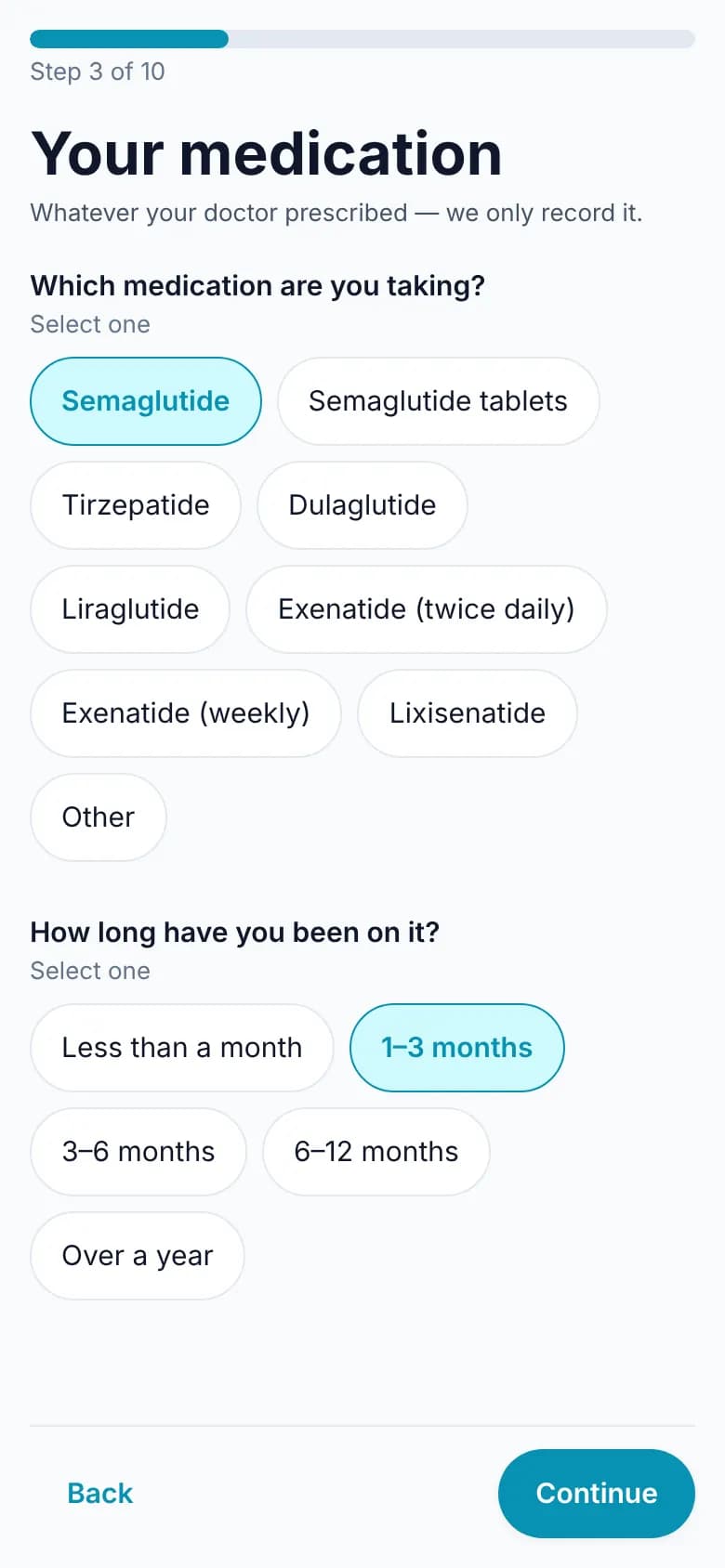
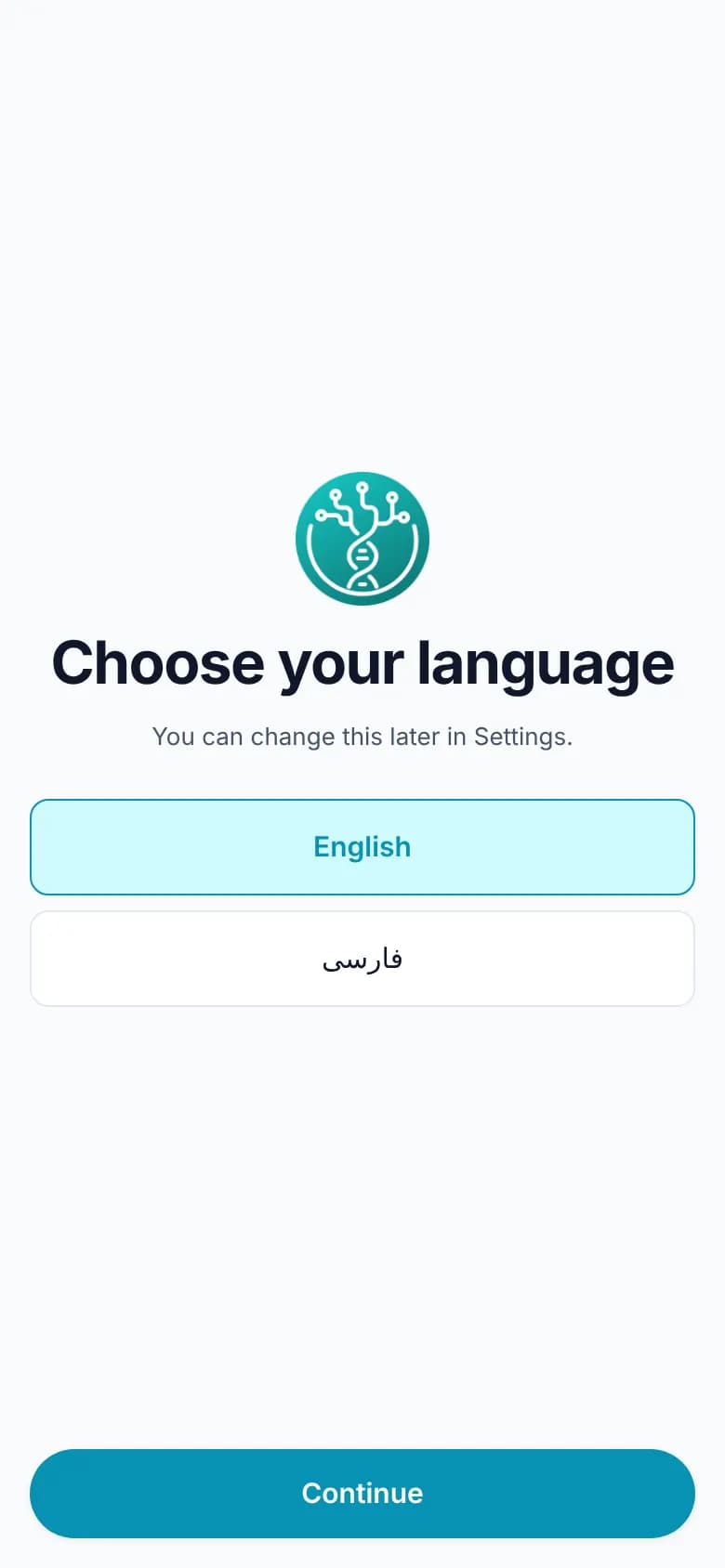
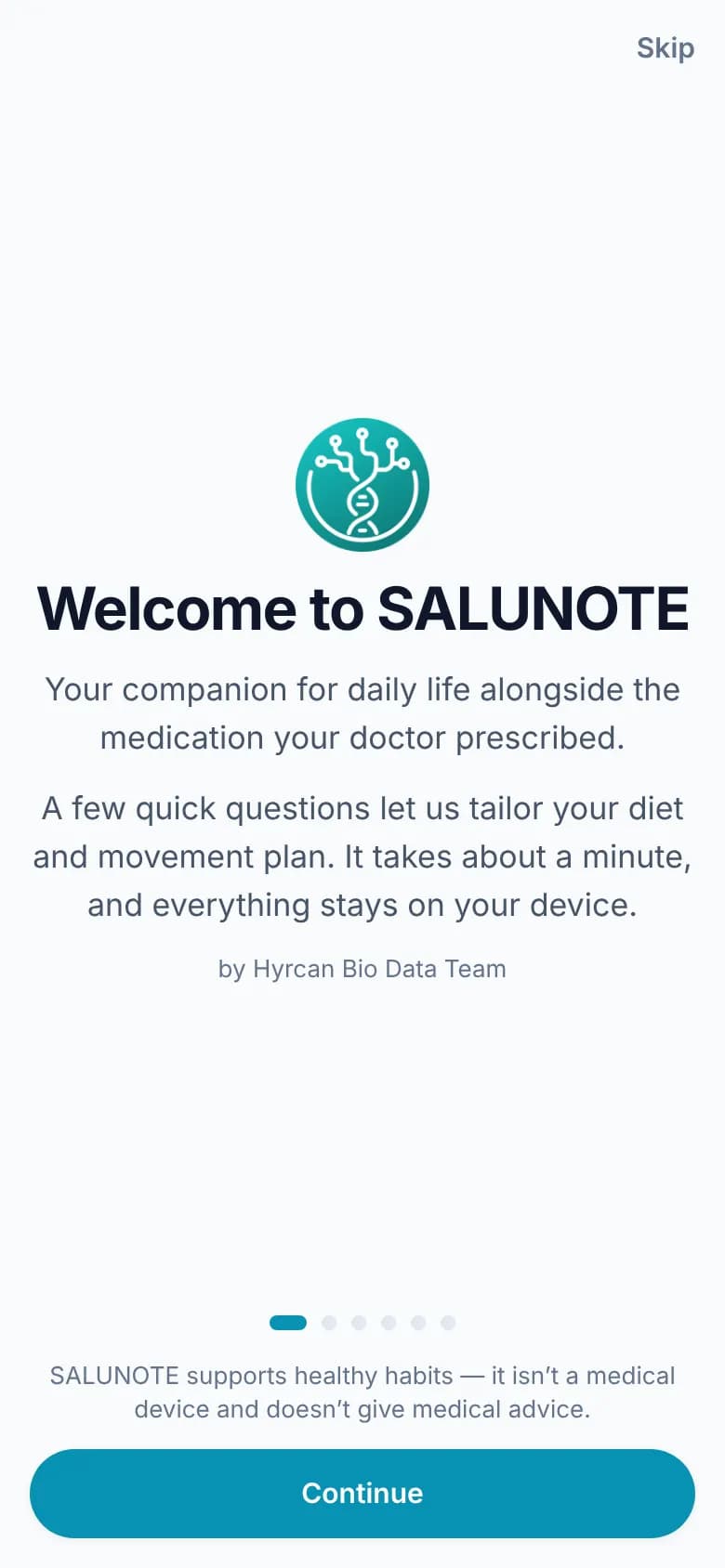
The first time you open the app, you choose a language: English or Persian. You can change it later in Settings. After a short introduction come ten quick questions about your goal, how you eat, move, sleep and feel, and which medication you take (by name). Every question starts on a middle answer, so you can simply keep tapping Continue.

The last question asks for the daily water and step targets your doctor gave you. If you weren’t given any, leave them blank. The app never makes up a target, and a target you leave blank simply isn’t counted. Your answers shape your four-week plan, and they stay on your phone.
Go to the Download page

Screenshot: Choose your language
Choose your language
Screenshot: The introduction
The introduction
Screenshot: One of the ten questions
One of the ten questions

Home

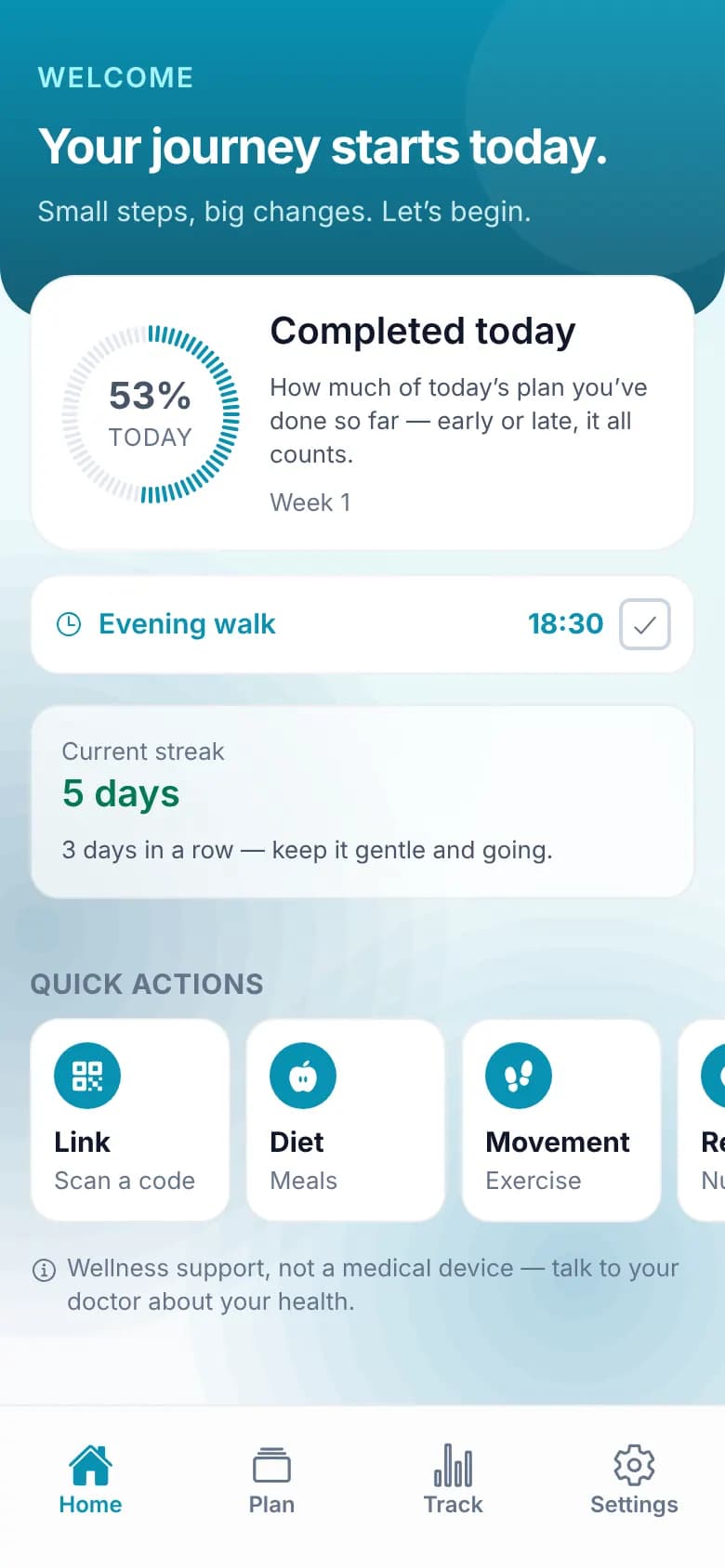
The ring shows how much of today you’ve done so far: everything the day has asked of you up to now, whether you did it early or late. Before anything is due, it shows a dash rather than zero.

Below the ring are the reminders that are due now or coming up in the next two hours. Tick one right there when it’s done and it leaves the list. Your streak is the number of days in a row you’ve recorded something about your lifestyle.

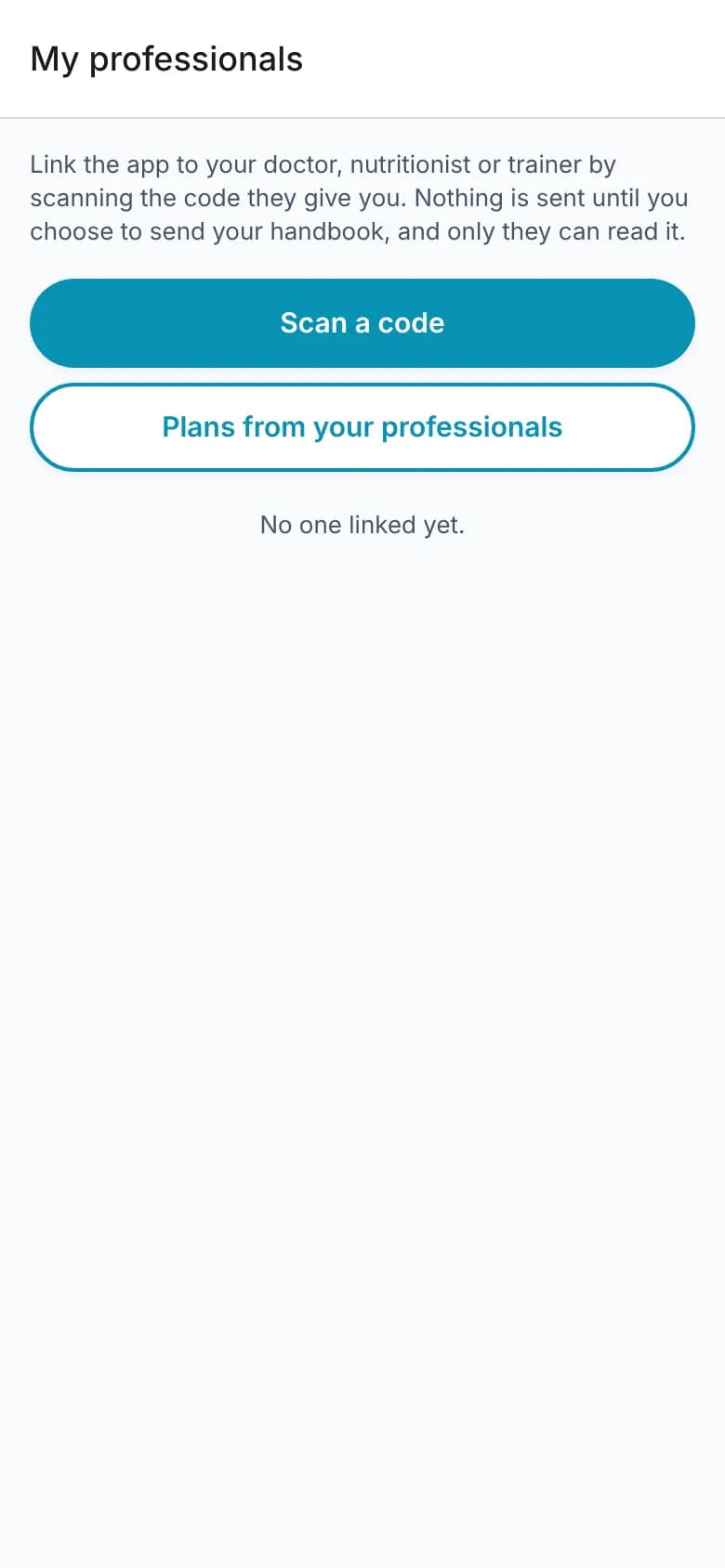
Quick actions take you straight to linking a professional, your diet and movement plans, your reminders and your handbook.

Screenshot: Home
Home

Plan: meals and movement

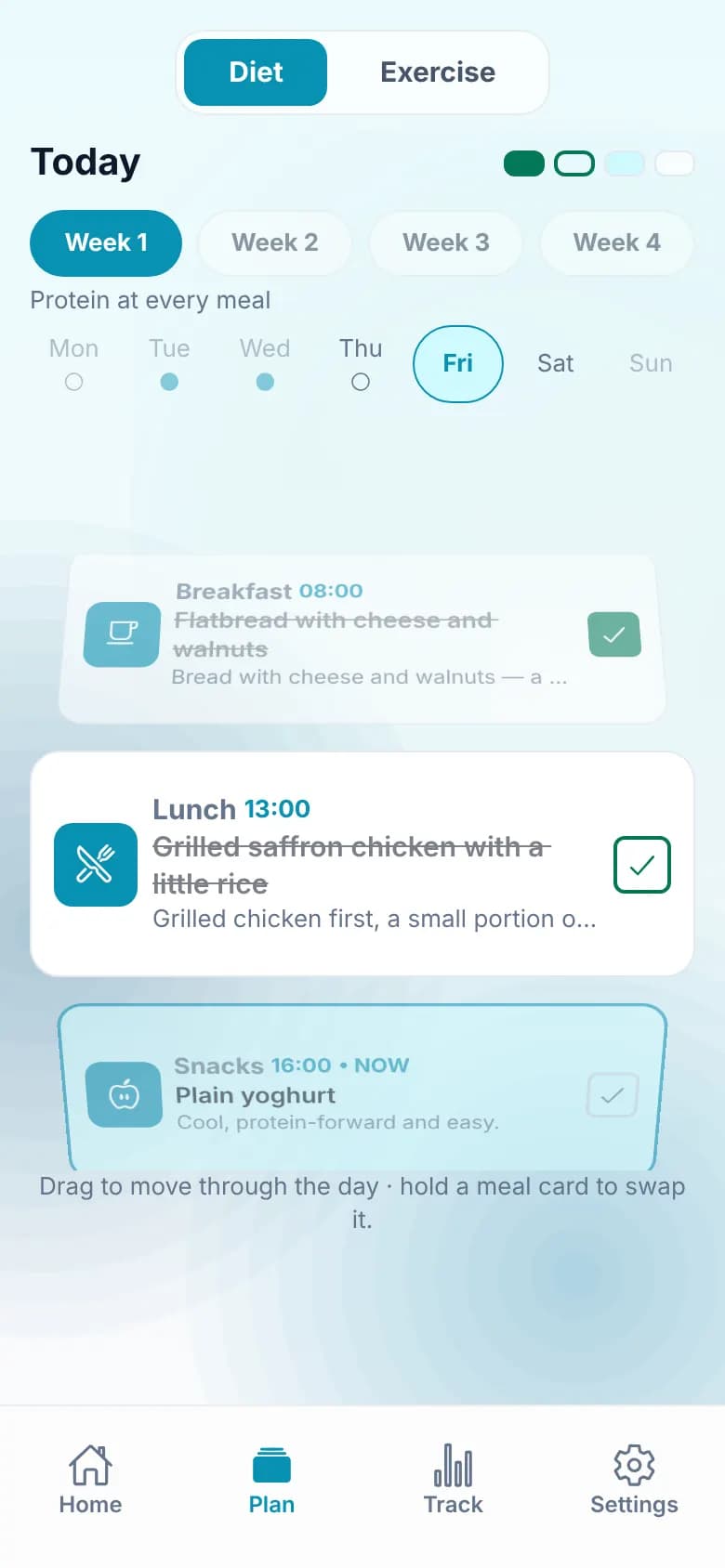
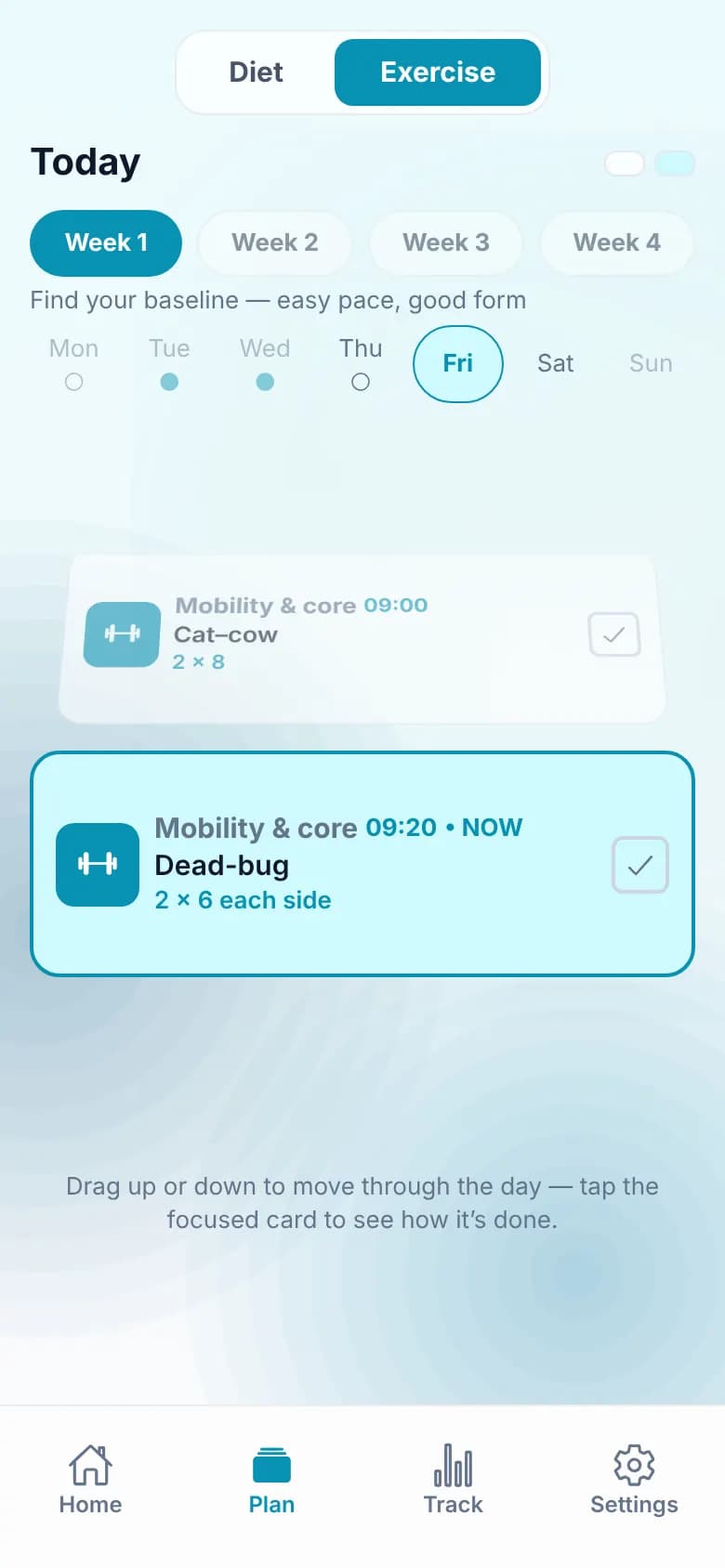
Your plan lasts four weeks and has two tabs, Diet and Exercise. Each day is a stack of cards: drag up or down to move through the day. Hold a meal card to swap it for a different idea, or tap the front movement card to see how it’s done.

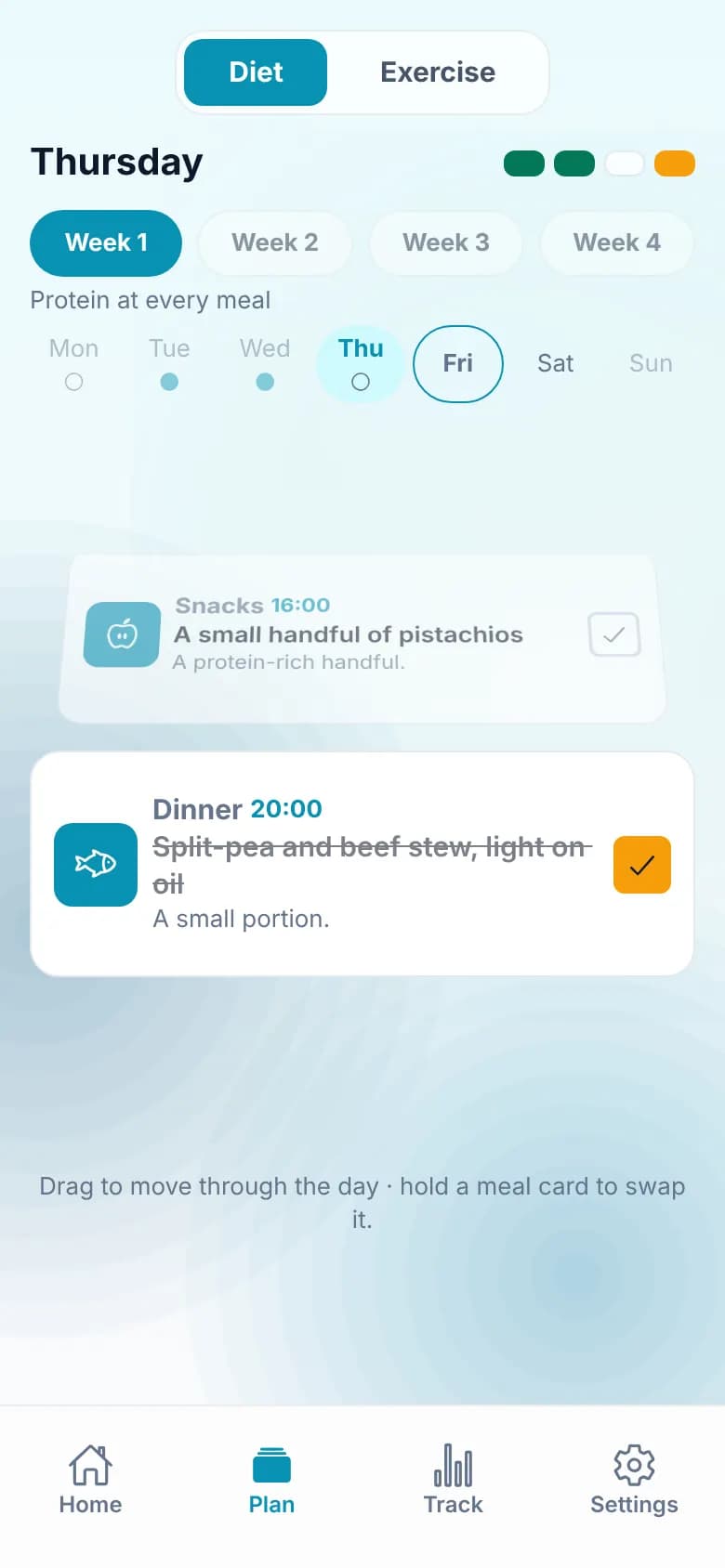
Tick a card once you’ve done it. You can tick today’s cards, and yesterday’s too if you forgot. A card you tick before its time counts straight away, and a card whose time hasn’t come yet is never counted as missed.

What the ticks mean

  • Filled green: done on time, which means within an hour either side of the card’s time (for a 13:00 lunch, 12:00 to 14:00).
  • Hollow green outline: done early, more than an hour before the card’s time.
  • Amber: done late, more than an hour after the card’s time.

All three count as done in exactly the same way. The look only tells you when you did it. You’ll see the same ticks on a meal’s foods, on your own reminders and in the small bars at the top of the Plan screen. Medication ticks are always plain grey.

Screenshot: Today: on time and early
Today: on time and early
Screenshot: Yesterday’s dinner, ticked late
Yesterday’s dinner, ticked late
Screenshot: Movement cards
Movement cards

Track

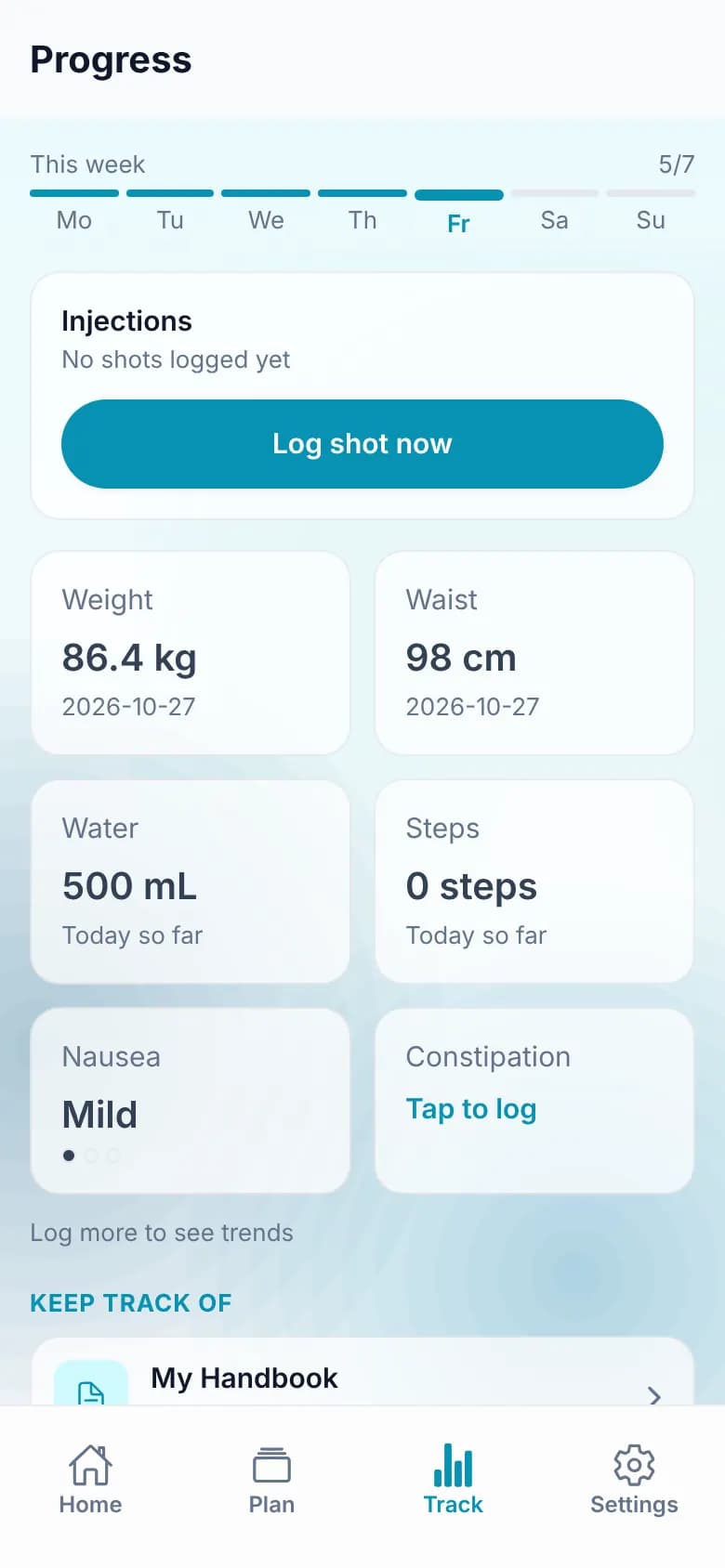
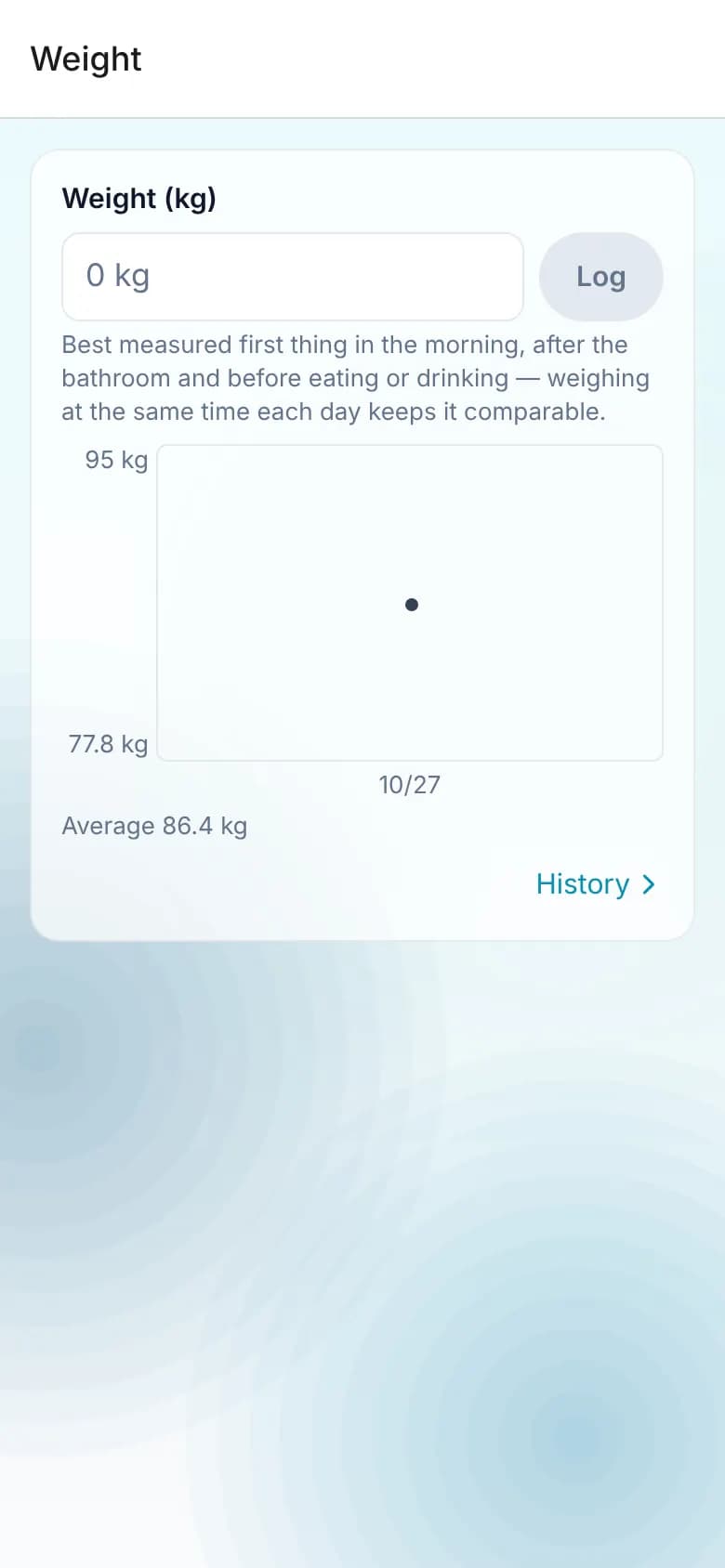
Track holds your own records: weight and waist (once a day, and you can edit today’s entry), water and steps as daily totals, nausea and constipation on a simple scale, and your injections if your medication is injected. Tap any tile to log something and see its history.

Weight and waist are weekly check-ins. Log each one on any day of your plan week and it counts for every day of that week. If a week ends without one, it counts as missed for that week. During the current week, nothing is counted until you log it.

Screenshot: Track
Track
Screenshot: Logging weight
Logging weight

Reminders

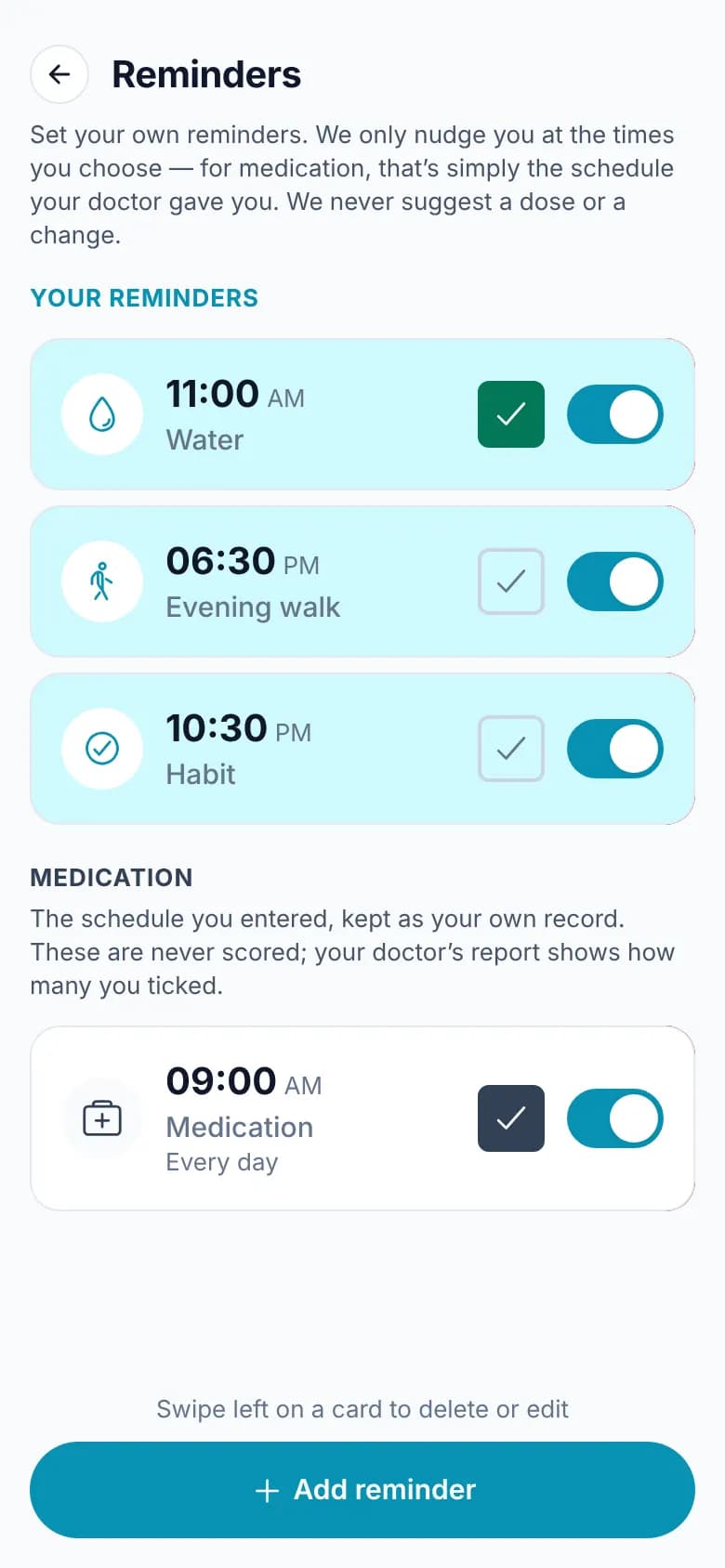
You choose every reminder and its time: medication, meal or protein, water, movement and habits. The app only nudges you at the times you set. Tick a reminder when it’s done, turn it off for a while, or swipe left on it to edit or delete it.

Medication reminders have a section of their own. They’re your own record of the schedule your doctor gave you. The app never suggests a dose or a change, and medication is never part of any score.

Screenshot: Reminders
Reminders

My Handbook and how the numbers work

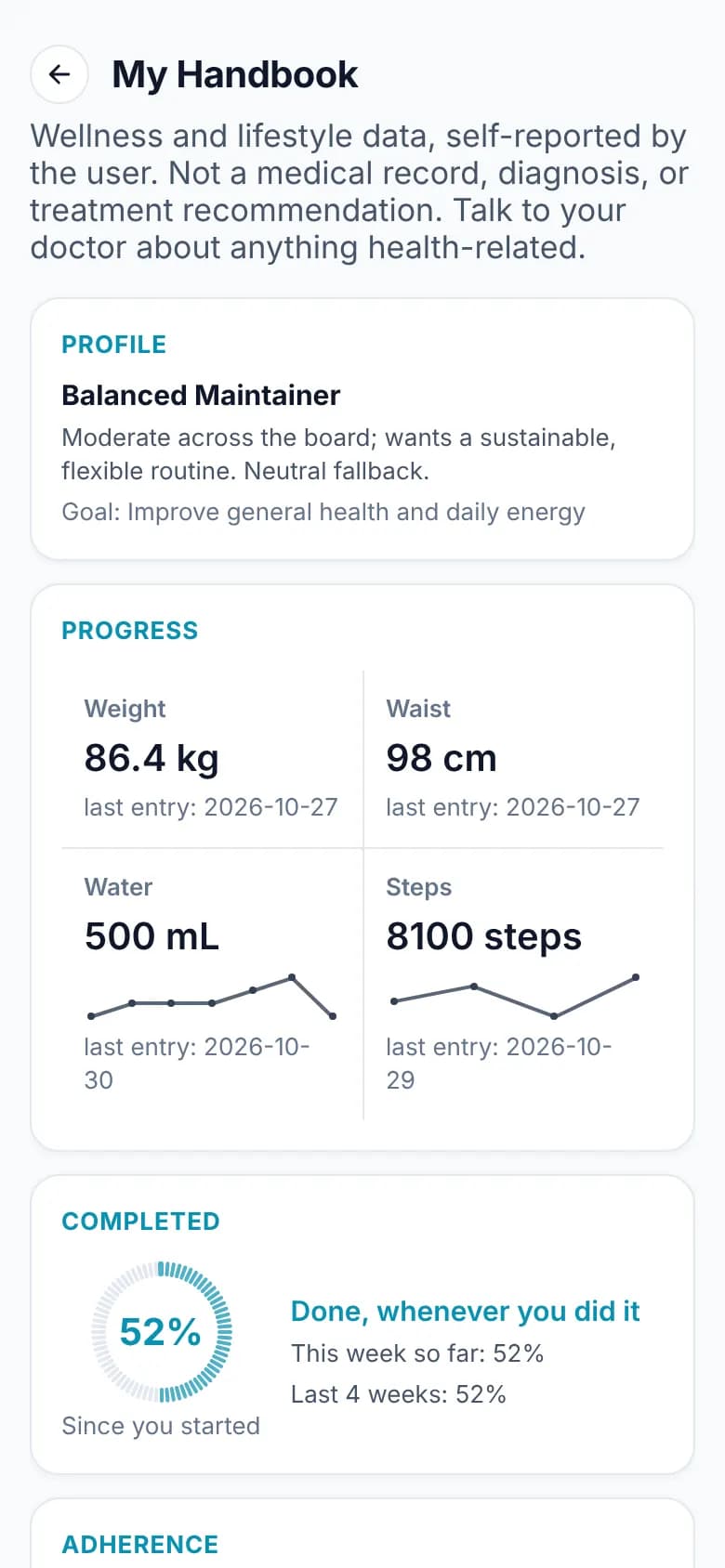
The Personal Metabolic Handbook sums up your profile and what you’ve logged: weight, waist, water and steps with their trends, plus two figures. Completed asks whether each thing happened at all. Adherence asks whether it happened close to its time. You see both for this week, for the last four weeks and since you started.

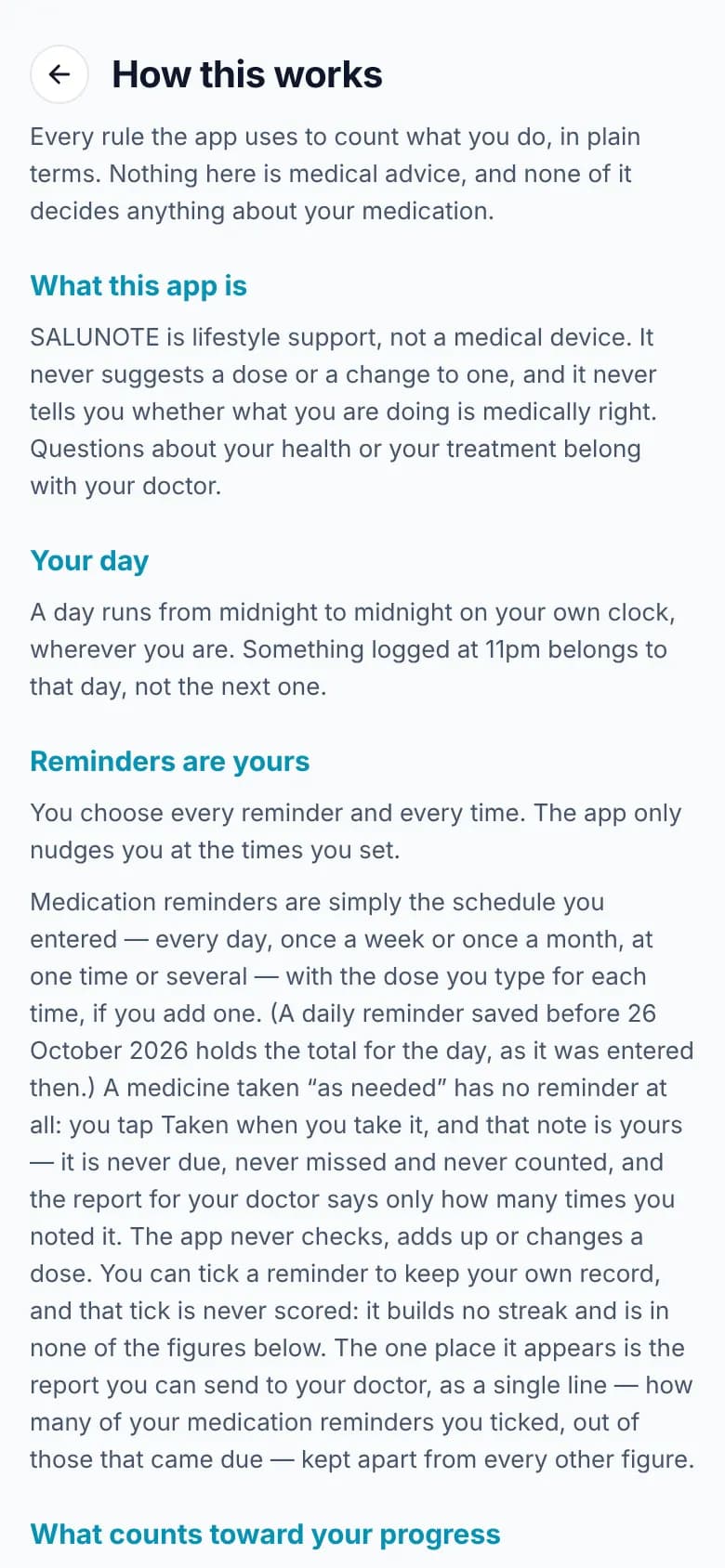
Export it as a PDF to take to your appointment, or send it to a professional you’ve linked. Settings › About › How this works explains every rule behind every number, with the actual figures.

Screenshot: My Handbook
My Handbook
Screenshot: How this works
How this works

Settings, your profile and your code

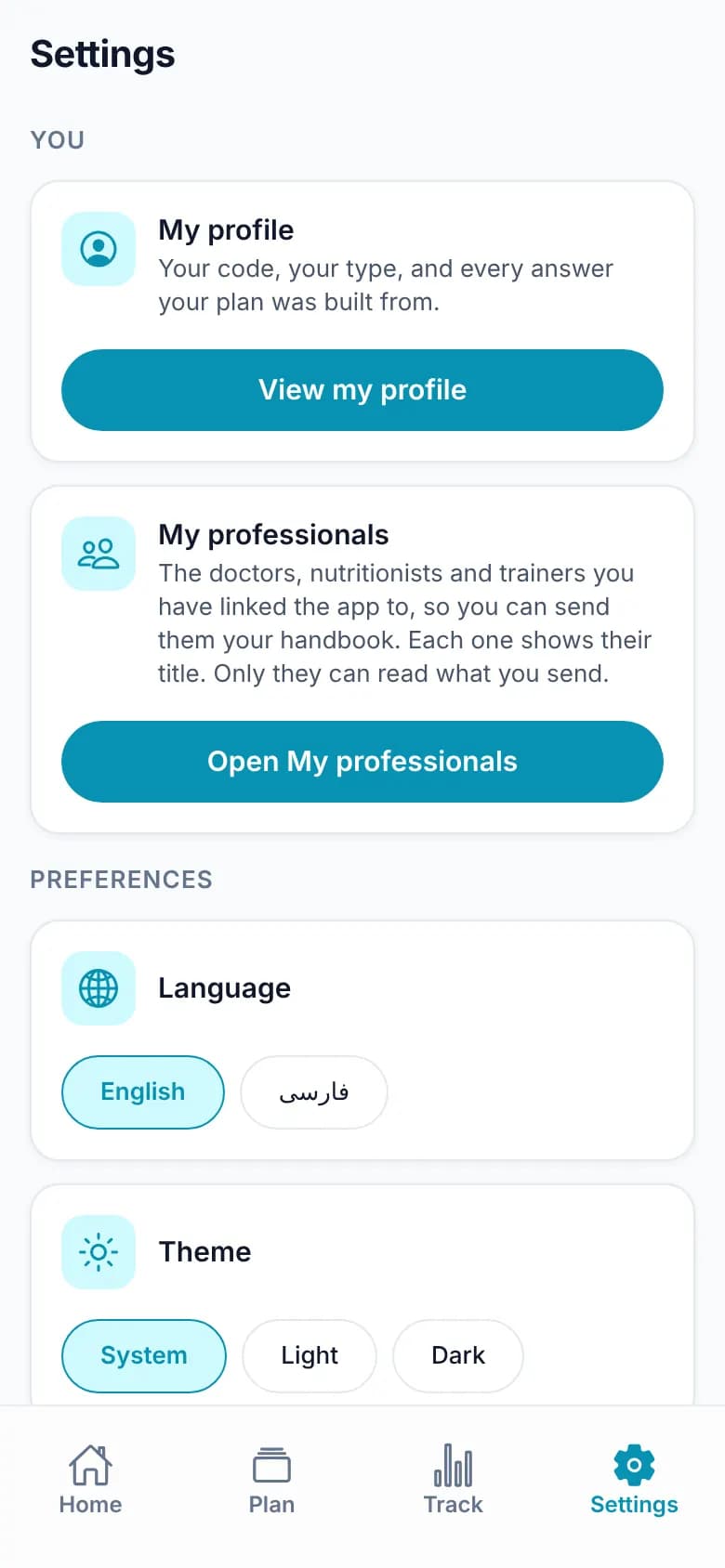
Settings is where you’ll find your profile, your professionals, language, light or dark theme, feedback, problem reports and the legal documents.

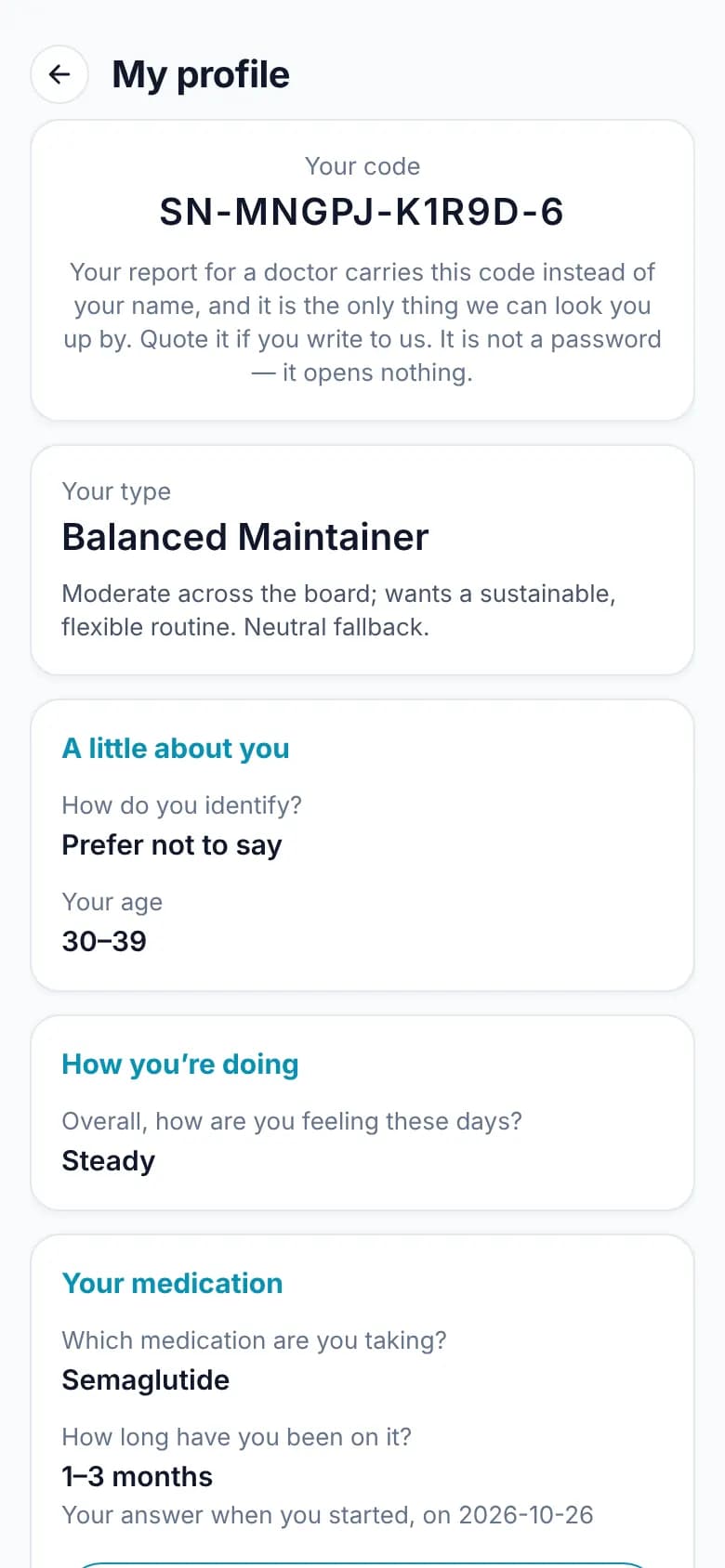
My profile shows your code (for example SN-MNGPJ-K1R9D-6), your type and every answer your plan was built from. A report for a professional carries this code instead of your name. It isn’t a password and can’t open anything.

Screenshot: Settings
Settings
Screenshot: My profile and code
My profile and code

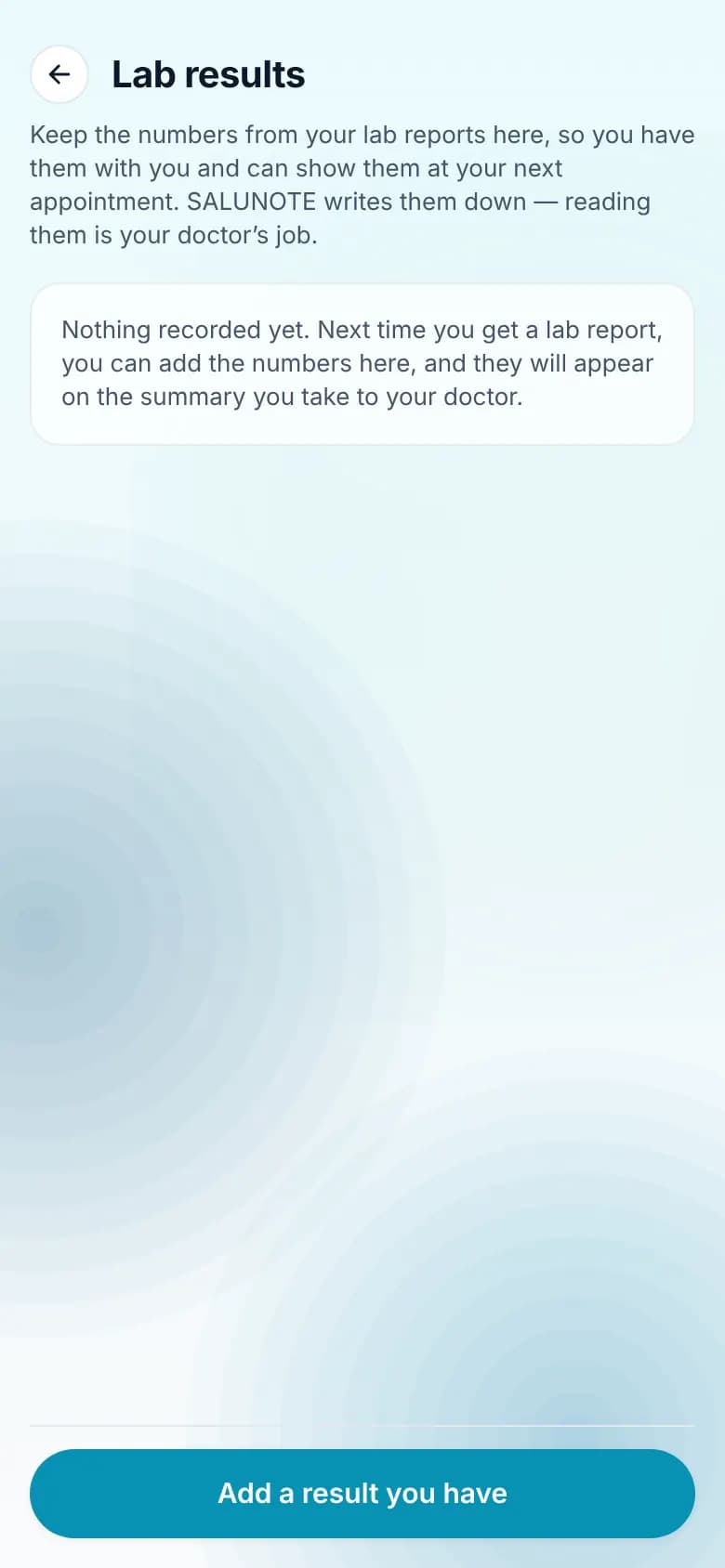
Lab results

Keep the numbers from your lab reports here, so you have them with you at your next appointment. Type them in, or let the app read them from a photo or PDF on your phone. Nothing is saved until you confirm the summary, and the photo isn’t kept.

SALUNOTE only writes the numbers down. Making sense of them is your doctor’s job.

Screenshot: Lab results
Lab results

Privacy and deleting your data

Everything you log lives on your phone, and you can erase all of it at any time in Settings › Erase all data. The Delete your data page explains what can reach our server (an encrypted report you send, or a problem report you agree to send) and how to have it deleted.

Delete your data

The professional dashboard

For doctors, nutritionists and trainers. Your patients, clients or trainees link the app to you, send you their handbook and receive the lifestyle plans you write. All of it is end-to-end encrypted.

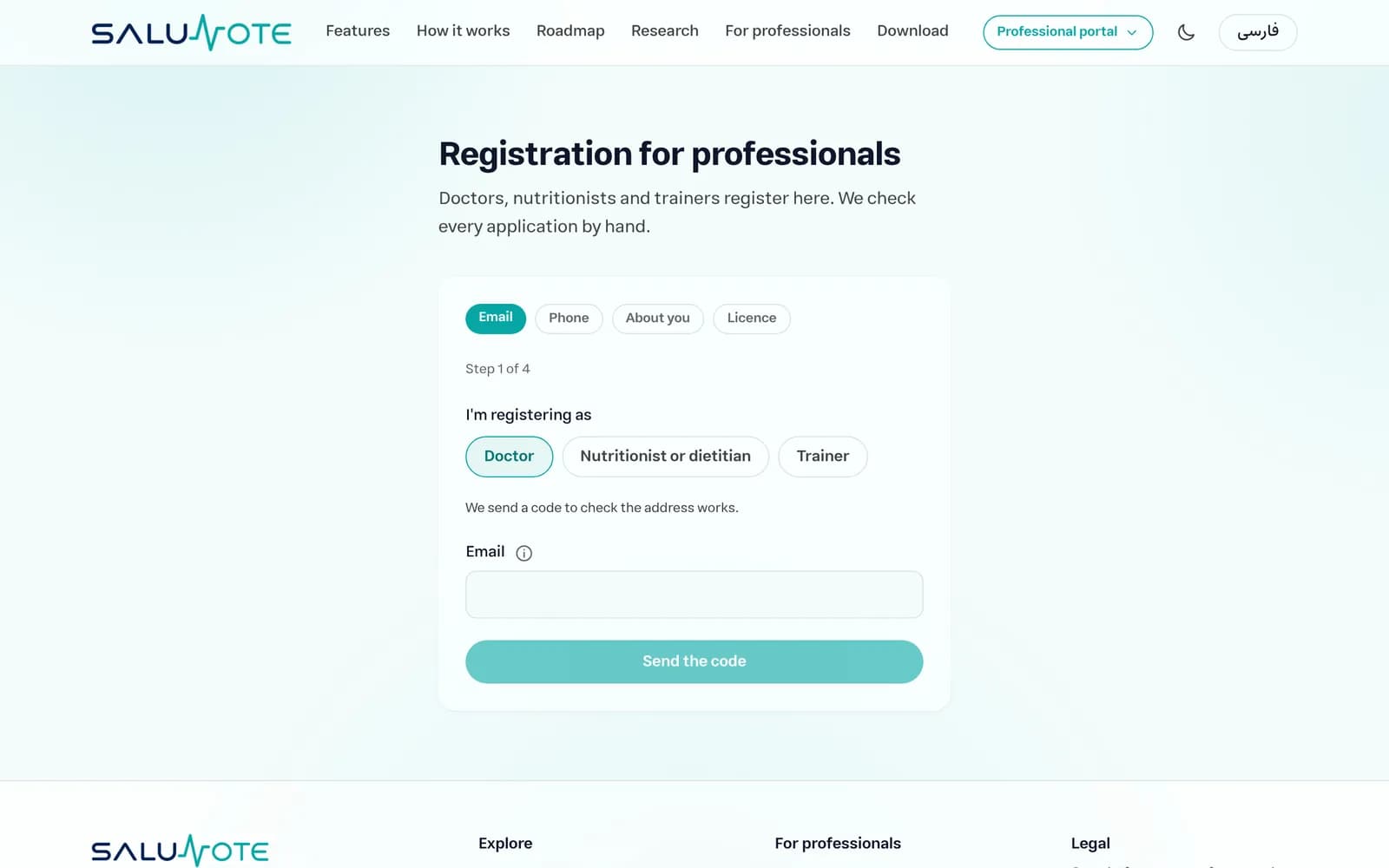
Register

Choose whether you’re a doctor, a nutritionist or dietitian, or a trainer, then confirm your email address and phone number with a code. After that, add your details and your licence. Nutritionists and trainers add a certificate.

We check every application by hand. Once you’re approved, we email you a link to set your password. From then on you sign in through Professional portal at the top of every page.

Go to registration

Screenshot: Registration
Registration

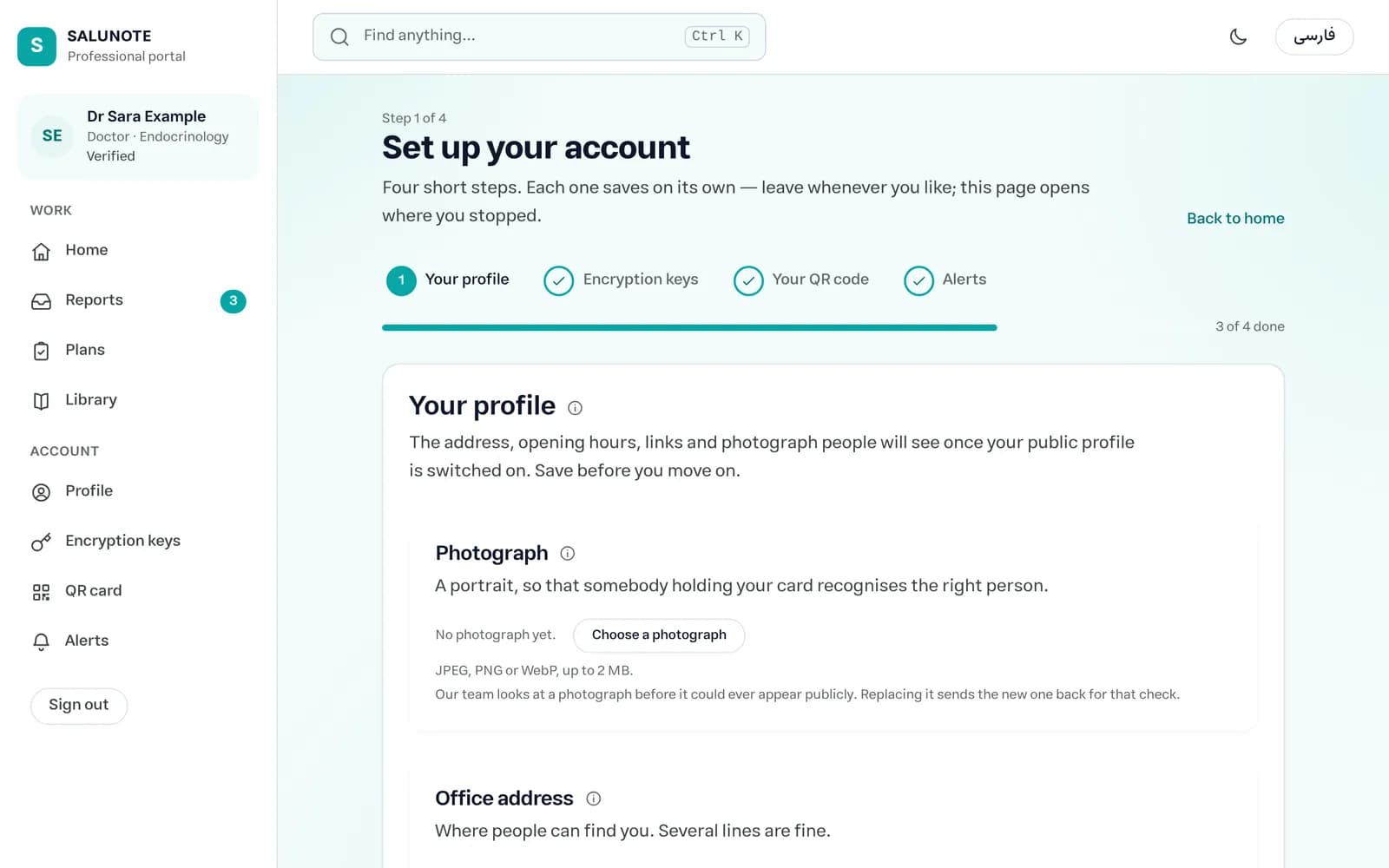
Set up your account

Four short steps, each saved on its own, and the page reopens where you left off. First, your profile: photograph, office address, opening hours and links. (Our team looks at a photograph before it could ever appear publicly.)

Next, your encryption keys. They’re created in your browser and protected by a passphrase only you know. We never see it, so keep it somewhere safe. Then your QR code, and finally alerts by email, Telegram or text message when a report arrives.

Screenshot: Setup
Setup

Your dashboard

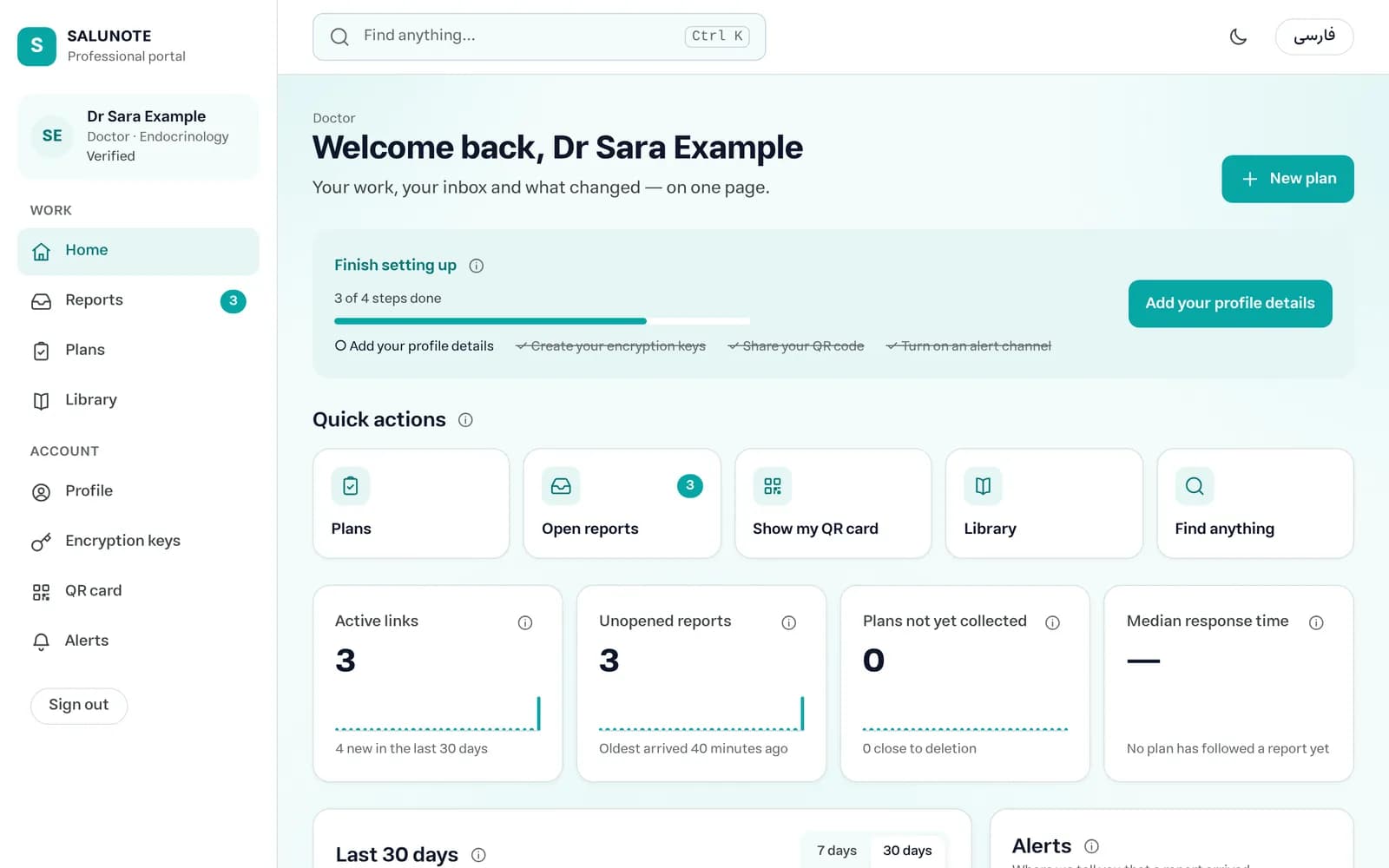
One page with everything that’s changed: what’s left of the setup, quick actions, your active links, reports you haven’t opened yet, plans the phone hasn’t collected yet, and activity over the last 7 or 30 days.

The search box at the top finds any page or action. The small “i” next to each field and card explains it in one sentence.

Screenshot: Dashboard home
Dashboard home

Your QR card

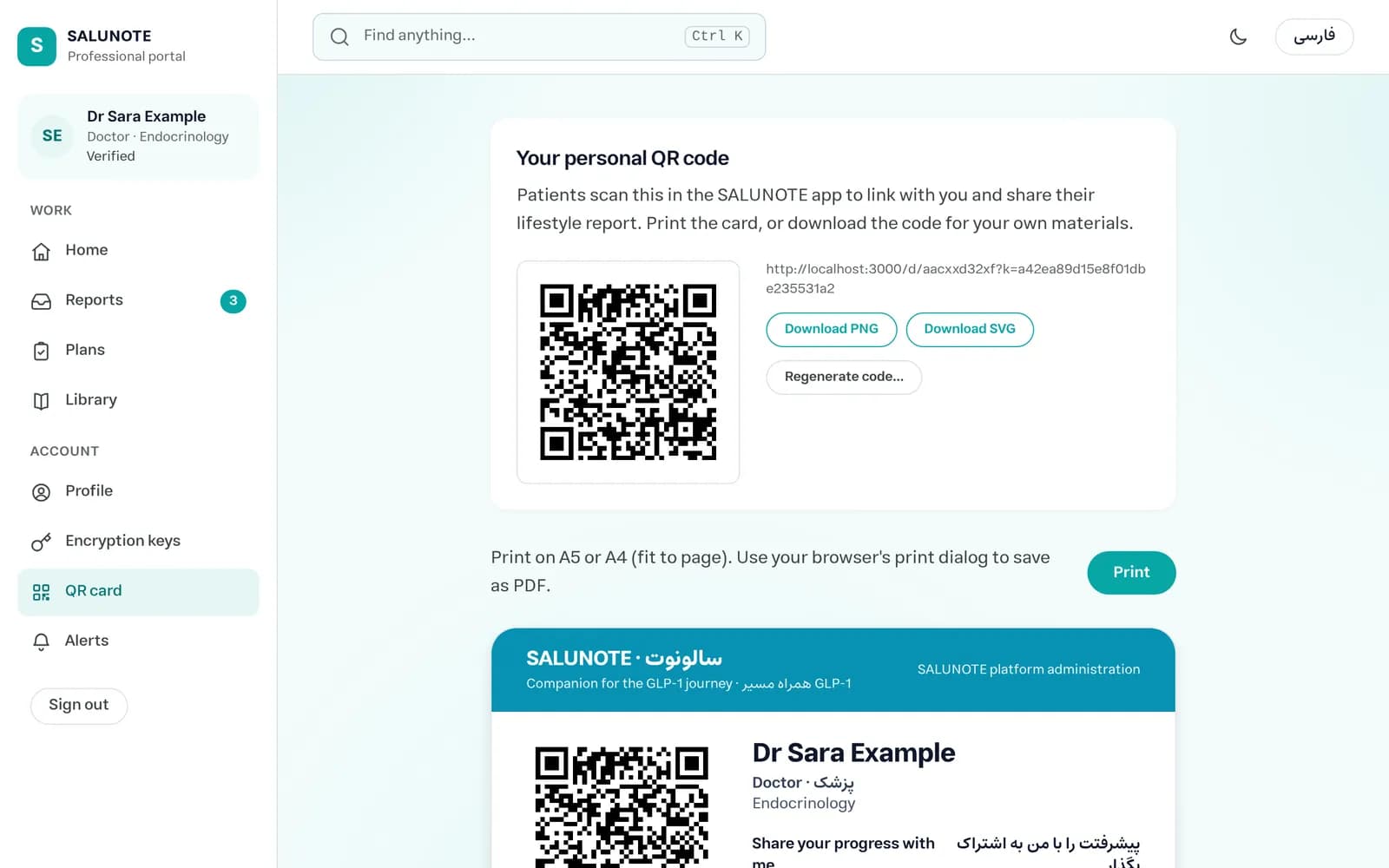
Patients link the app to you by scanning your personal QR code. Print the card on A5 or A4, or download the code as a PNG or SVG for your own materials. The card gives your name, your profession and where to scan it in the app.

Screenshot: QR card
QR card

Reports

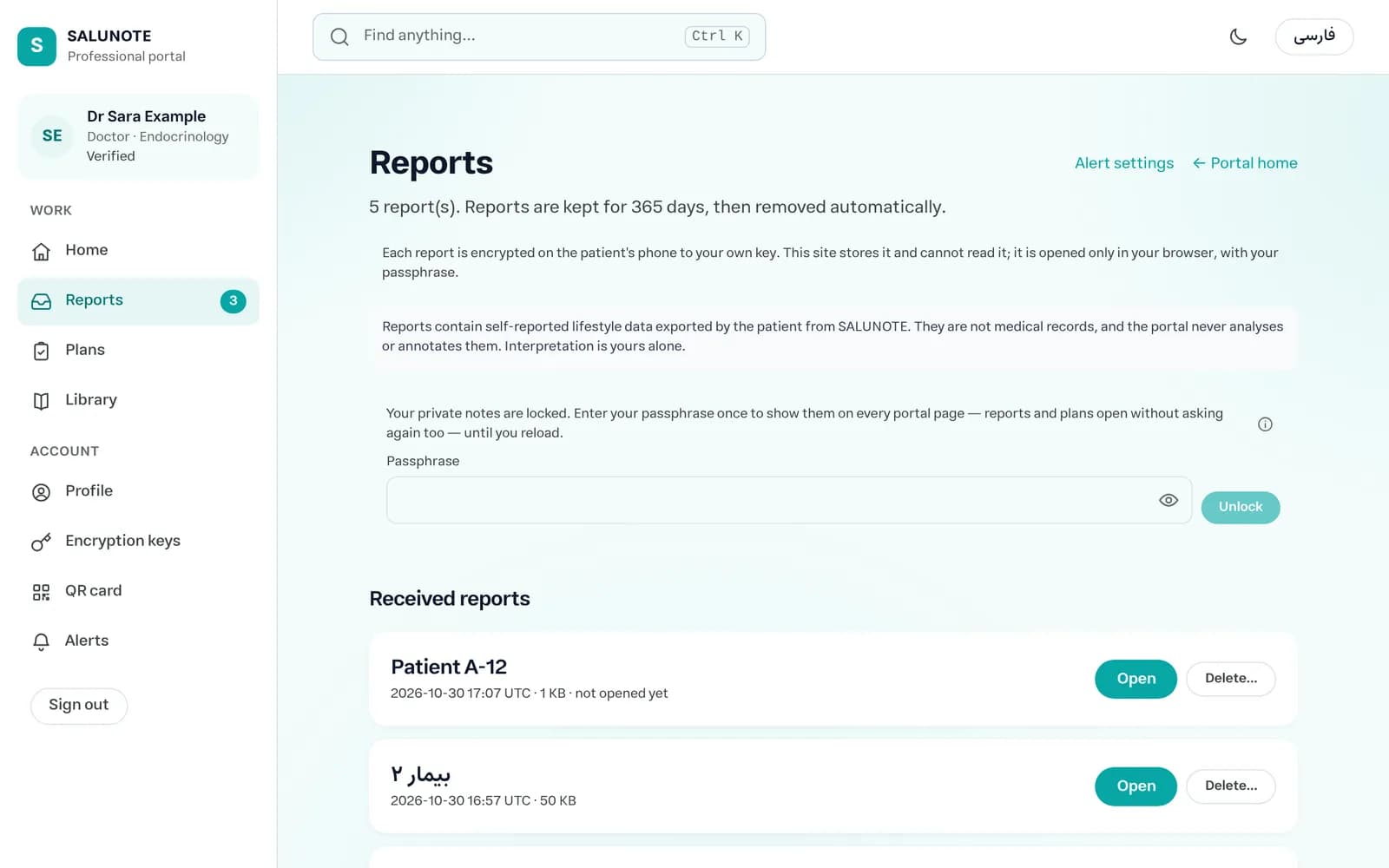
Each report is encrypted on the person’s phone to your key. This site stores it and passes it on, but can’t read it. It opens only in your browser, after you unlock your key with your passphrase (once per visit).

A report holds self-reported lifestyle data that the person exported from SALUNOTE. It isn’t a medical record, and the portal never analyses it or adds notes to it. Reports are kept for 365 days and then deleted.

Screenshot: Reports
Reports

Writing a plan

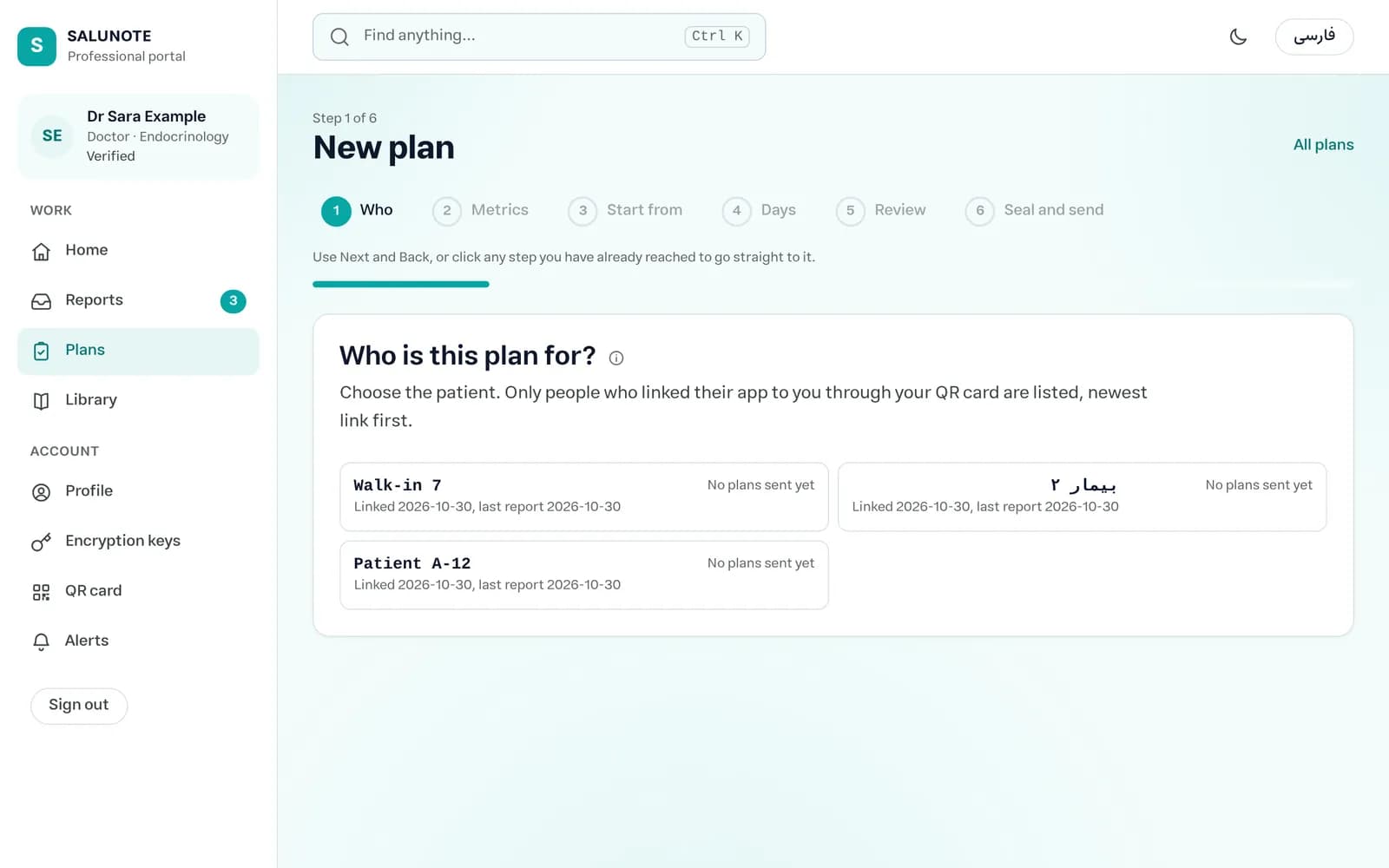
The plan wizard has six steps: who the plan is for, their metrics, a blank start or one of your templates, the days, a review that shows the plan as it will look on the phone, and finally seal and send.

After you send a plan, it waits for 30 days, whether or not the phone collects it, and is then deleted. You can withdraw a plan as long as the phone hasn’t collected it yet.

Screenshot: New plan
New plan

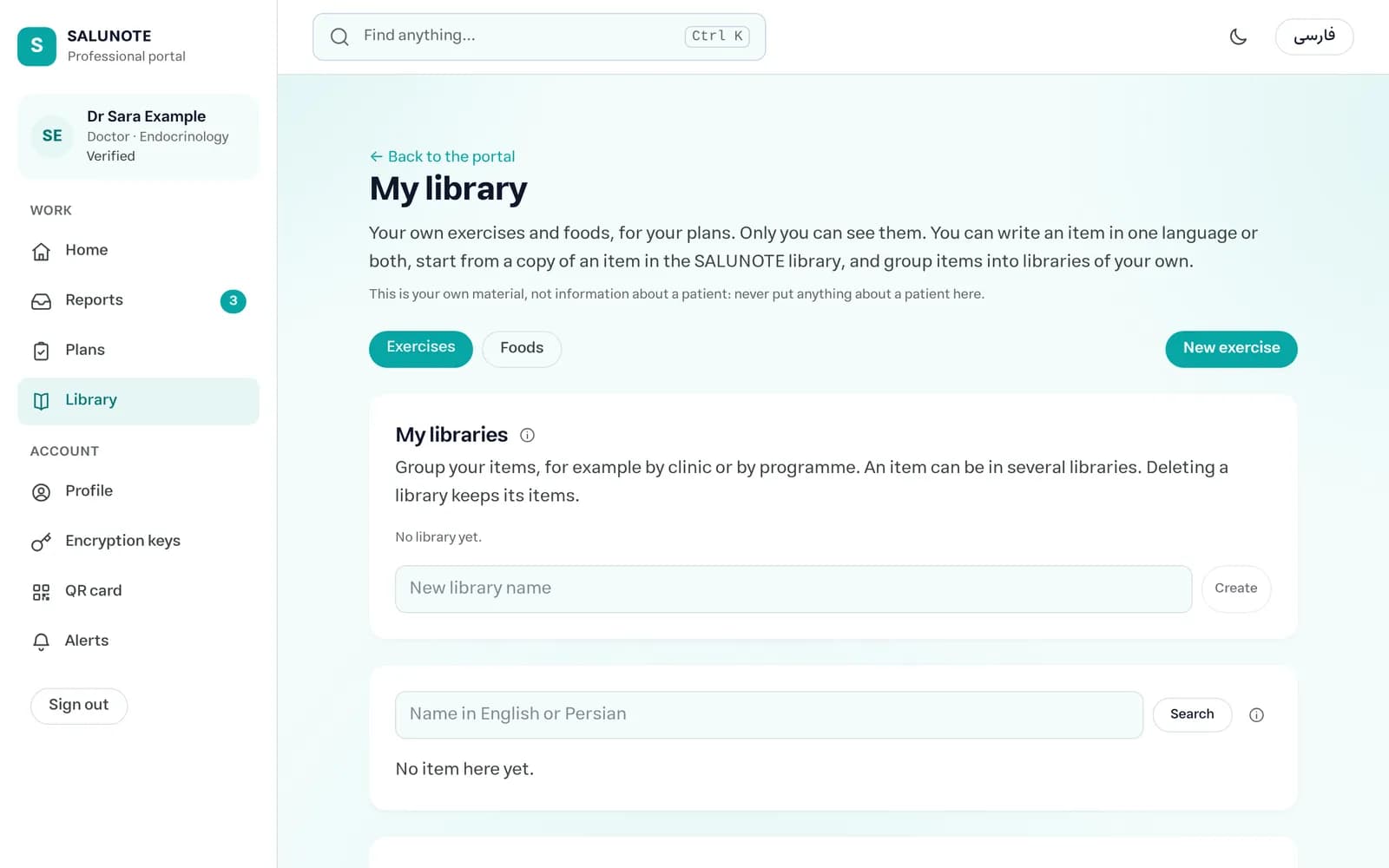
Your library

Plans draw on the SALUNOTE library of exercises and foods, and on your own items. Add your own in one language or both, start from a copy of a library item, and group items into libraries (by clinic or programme, for example). This is your own material, so never put anything about a patient here.

Screenshot: My library
My library

What the dashboard never does

SALUNOTE is lifestyle support, not a medical device. The dashboard carries lifestyle reports and lifestyle plans: food, movement, habits. It never interprets anyone’s data for you and never deals with medication. Questions about health and medication stay between you and the person, as they always have.